
Manage Agents
See every connected agent, change its permission level, limit its tools, and revoke its access.
The Agents tab of AI Product Tools > AI Agents lists every agent you connected. Once your first agent has made a request, the setup checklist is replaced by a summary card (click Hide setup to remove it), four usage tiles, and the agents list.
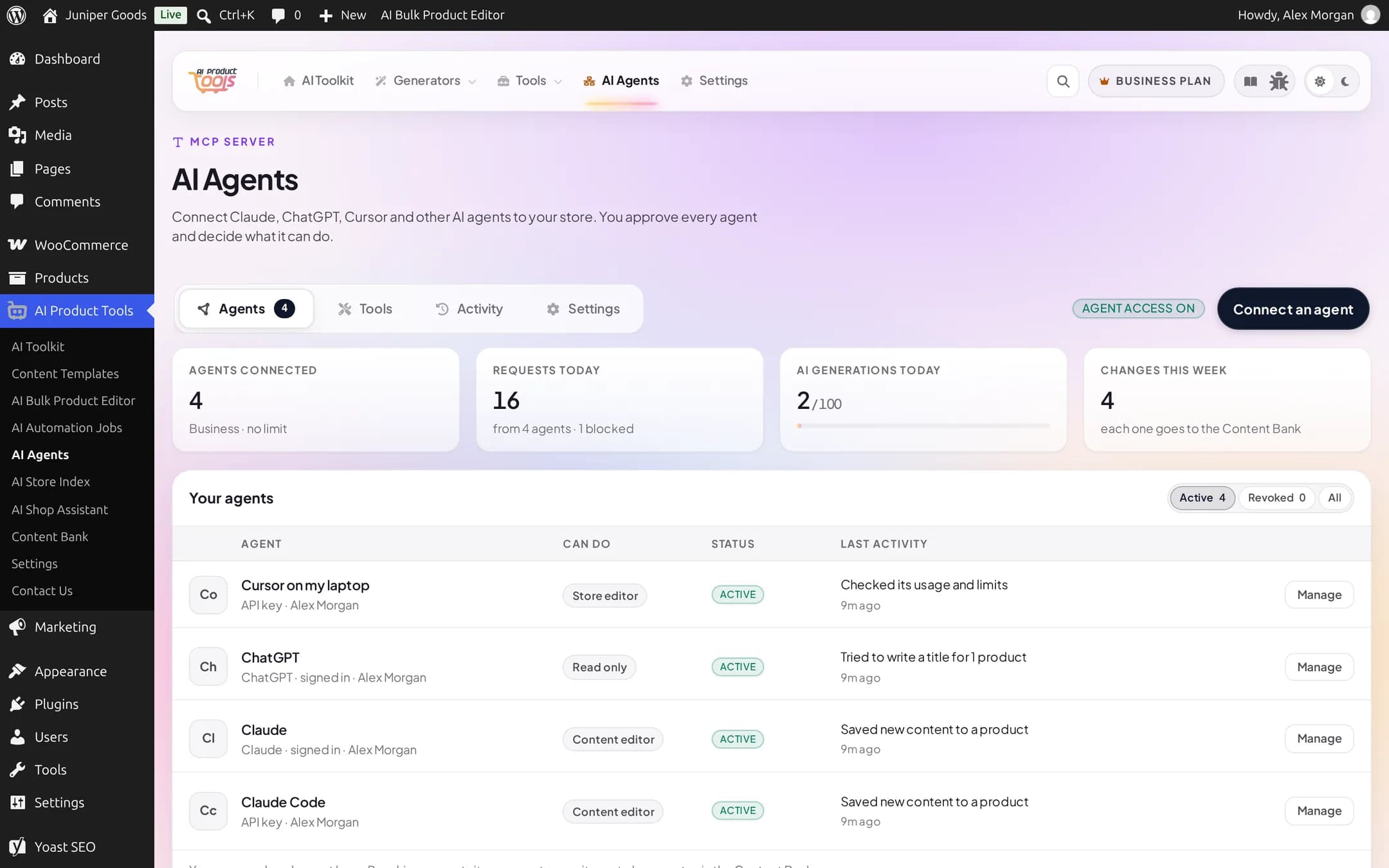
The usage tiles
| Tile | What it counts |
|---|---|
| Agents connected | Active agents, and on Free how many of your 3 slots are used. |
| Requests today | Every request agents made today, and how many were blocked. |
| AI generations today | Generations agents started with your AI key, against your daily AI limit. |
| Changes this week | Changes agents saved to your store. Each one goes to the Content Bank. |
The agents list
Each row shows the agent's name, how it connected (API key or signed in) and who added it, its permission level, its status, and what it did last. Filter the list with Active, Revoked or All.
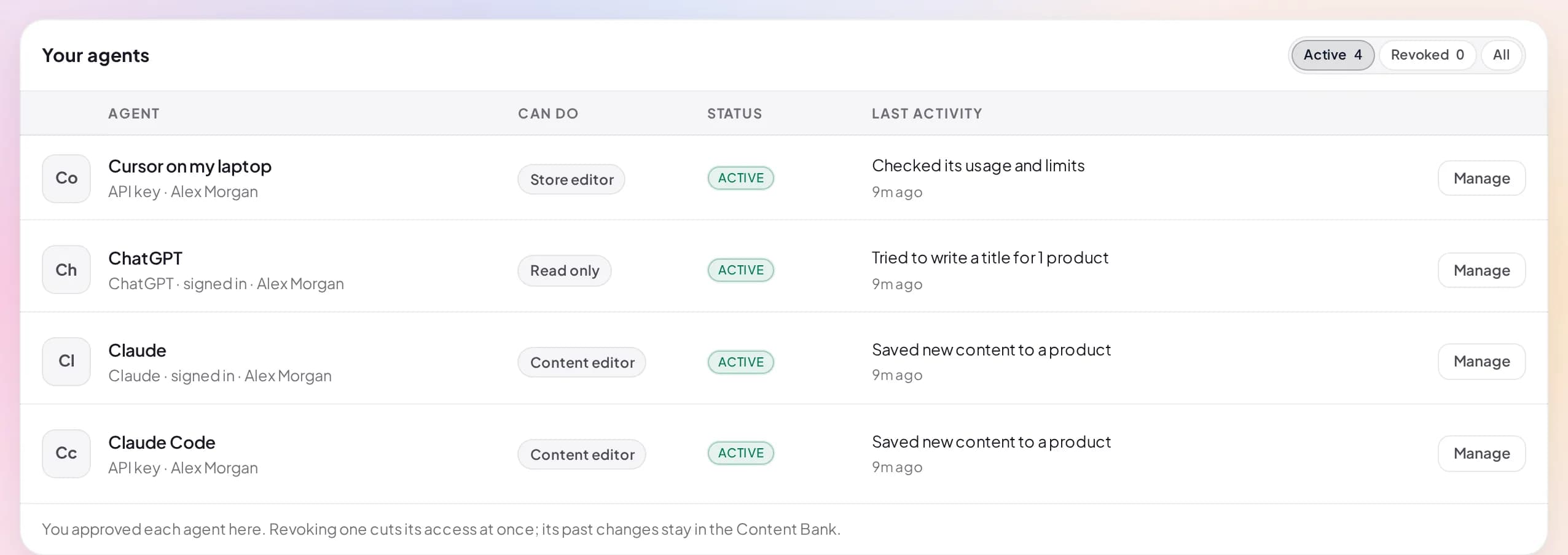
A new agent shows Waiting until its first request arrives.
Permission levels
Every agent has one of three levels. A request above the agent's level is refused, logged in Activity as Blocked, needs a higher level, and changes nothing.
| Level | What the agent can do |
|---|---|
| Read only | Sees products, categories and content. Changes nothing. |
| Content editor | Also writes descriptions, titles, tags, SEO meta, FAQs and image alt text. |
| Store editor | Also changes prices, SKUs, publish status, categories and URL slugs. |
Start with Content editor. A level change applies to the agent's next request; the agent does not need to reconnect. The Tools page lists which level each tool needs.
Agents act as the person who connected them
An agent works with the WordPress account of the person who added it. It can never do more than that account can, whatever its level.
Change an agent
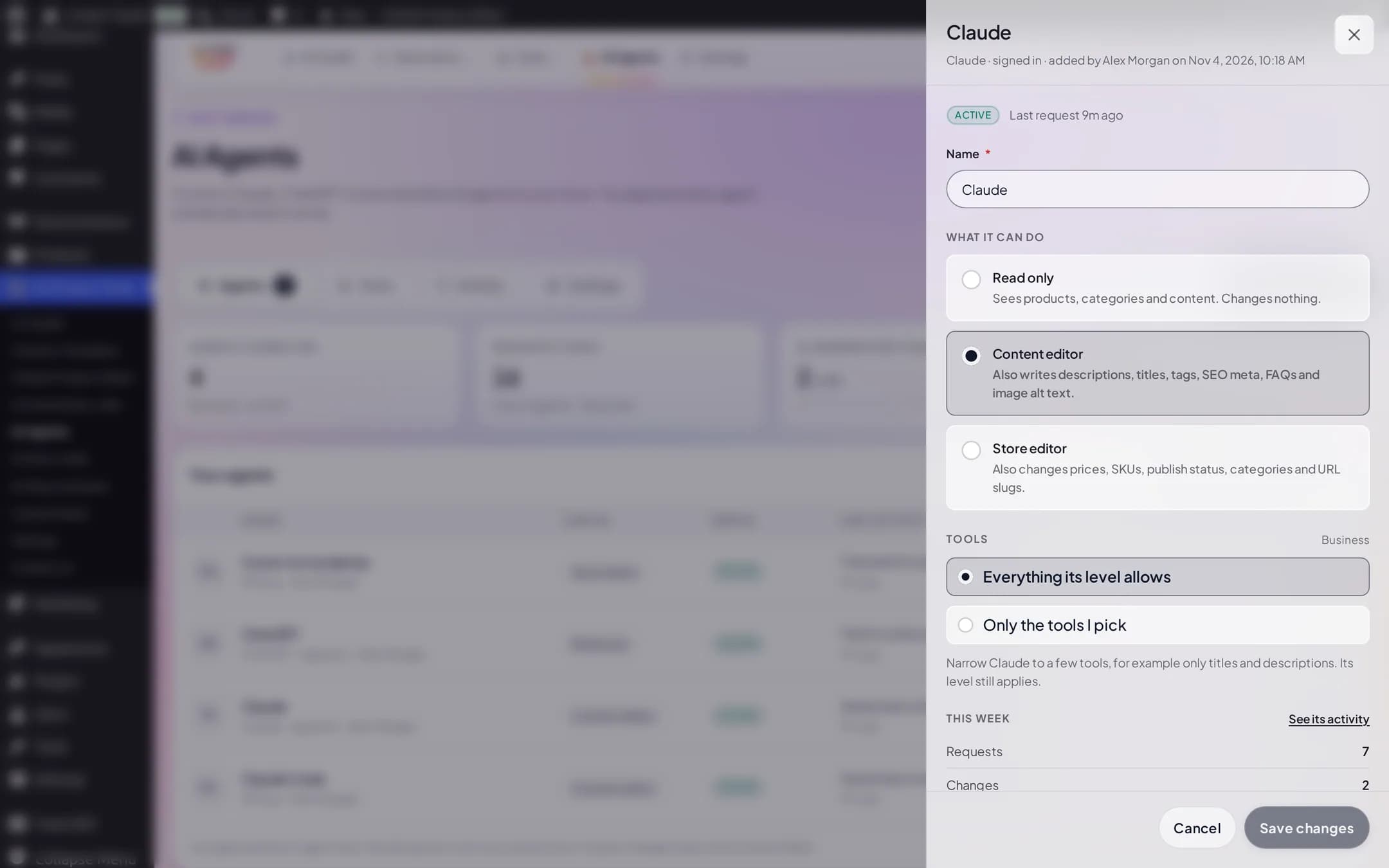
Click Manage on a row to open the agent's panel:
- Name: how the agent appears in the list and in Activity.
- What it can do: the permission level.
- Tools Business: see below.
- This week: requests, changes, AI generations and blocked requests, with a See its activity link that opens Activity filtered to this agent.
Click Save changes to apply. Only the person who added an agent can rename it or change its level. A store administrator can limit its tools or revoke it.
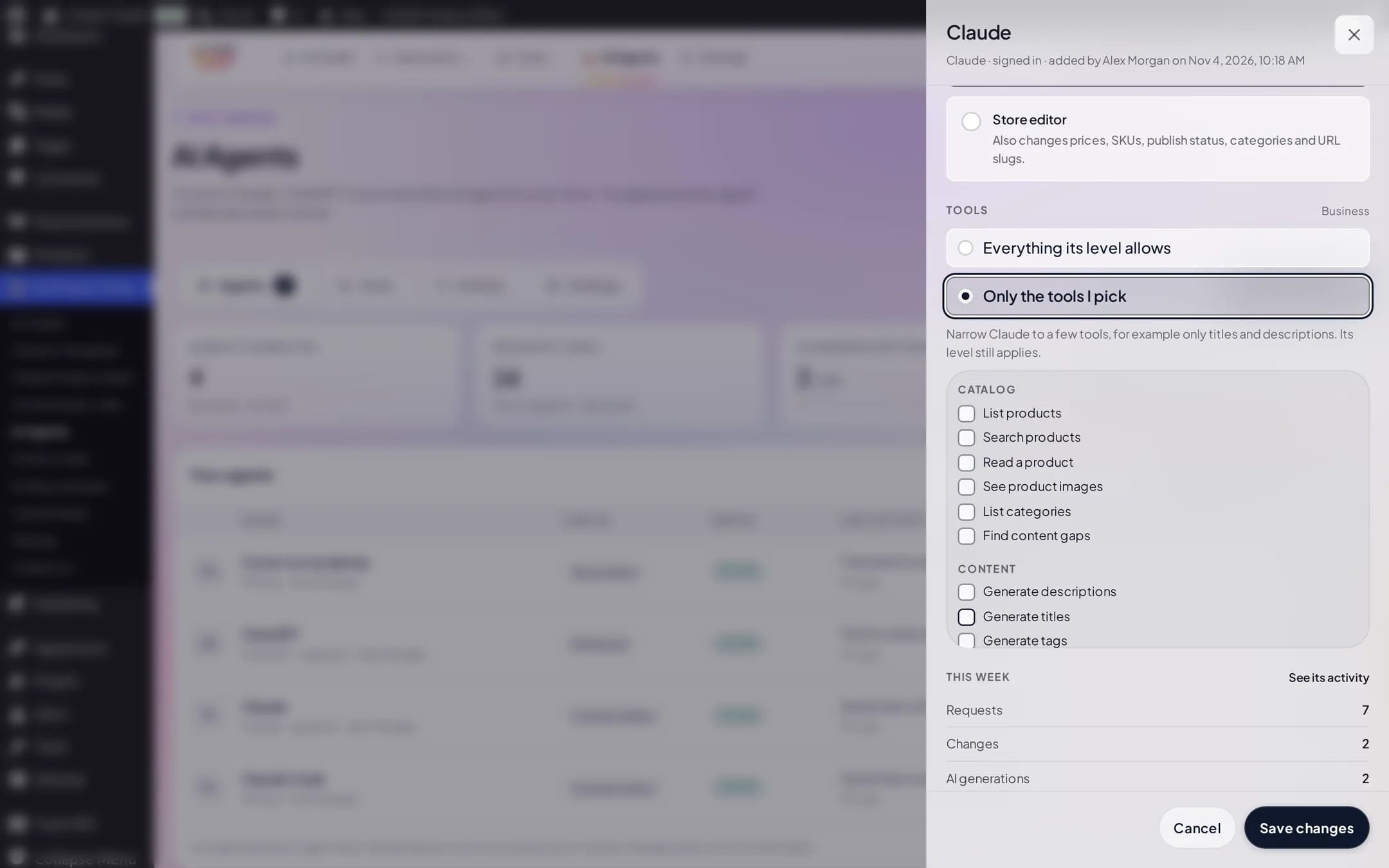
Limit an agent's tools
Business Under Tools, choose Only the tools I pick and tick the tools this agent may use, for example only titles and descriptions. The agent's level still applies: a tool above its level stays out of reach even if you tick it. Pick at least one tool, or go back to Everything its level allows.
If your Business plan ends while an agent has a tool limit, the agent keeps that narrower list; it never gains tools. The panel says how many tools the agent may still use and offers Remove the limit, so the agent can again use everything its level allows.
Revoke an agent
Open Manage and click Revoke access (on Free, rows also show a Revoke button). The agent can no longer reach your store from its next request on. Its past changes stay in the Content Bank, and its activity stays in the log. To use the app again, connect it again.
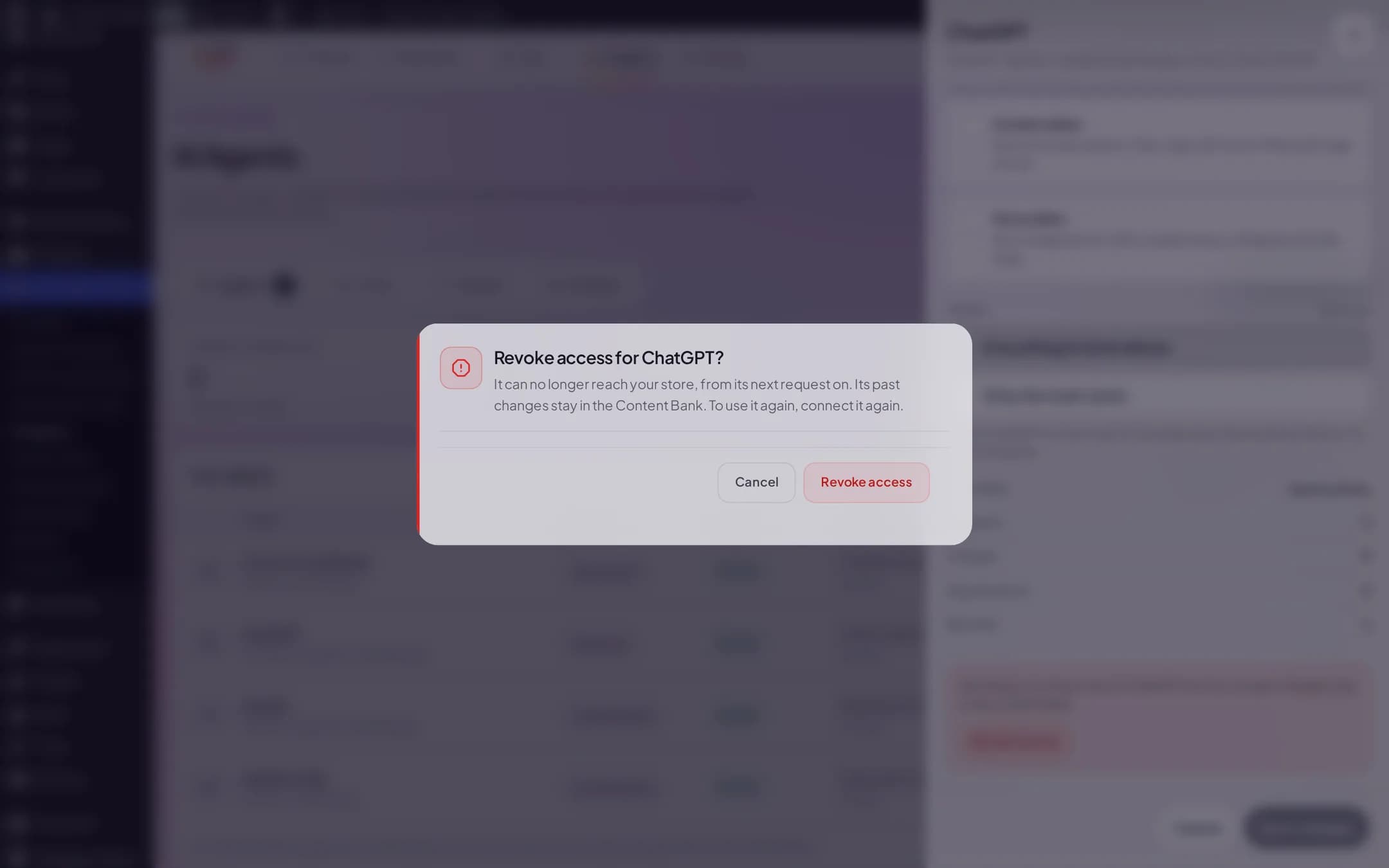
Revoked agents move to the Revoked filter with the reason, for example Revoked by a store administrator. The plugin also revokes an agent by itself when something looks like a stolen credential (a refresh token or an authorization code used twice), and disables an agent whose owner can no longer manage the store.
To cut every agent off at once without revoking them, turn off Agent access under the Settings tab.
The Free plan limit
Free stores can have 3 active agents at a time. When all three slots are used, the Agents tab says so, and a fourth sign-in is refused on the approval screen. Revoke an agent you no longer use, or upgrade to Business for unlimited agents.

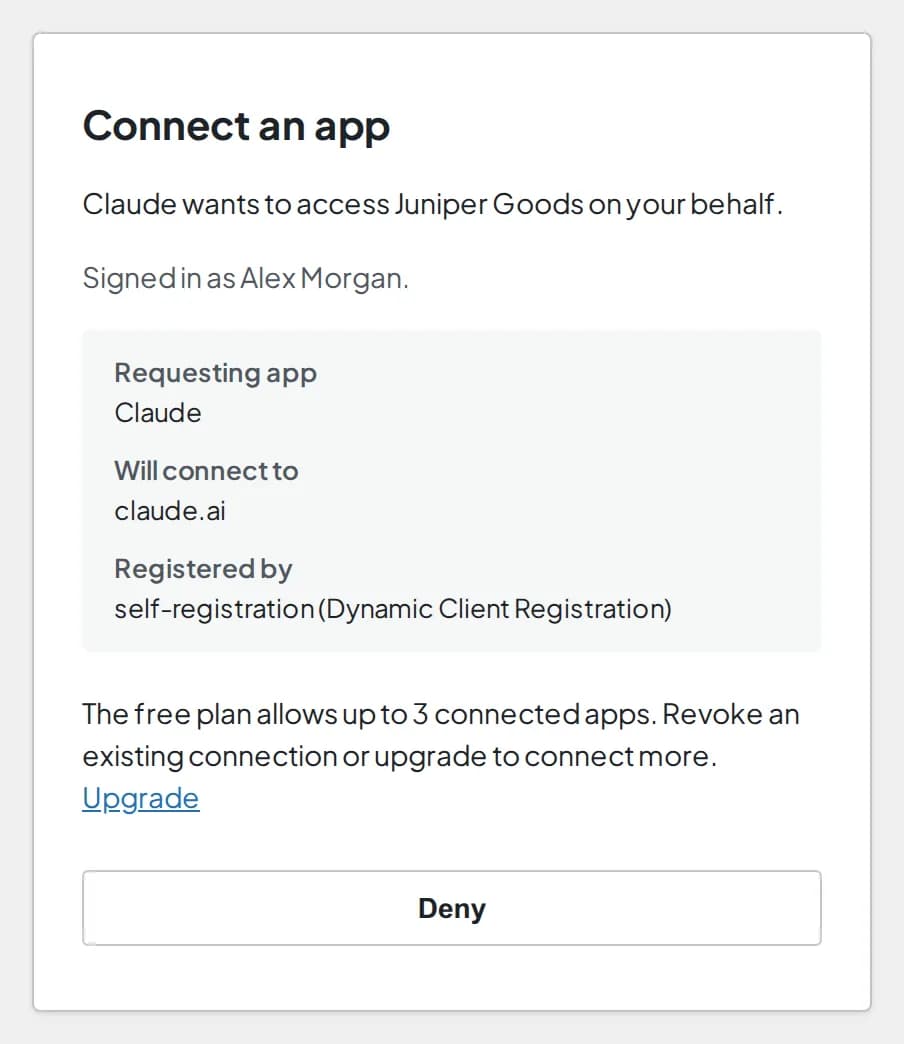
On Free, agents also work on one product per request. A request for several products at once, for example descriptions for two products, is refused with Needs Business, and the agent can repeat it one product at a time.